On this page
Not happy with how a character looks? You can draw the whole set again, or just one angle.
Regenerate all angles
Open Characters and tap the character.
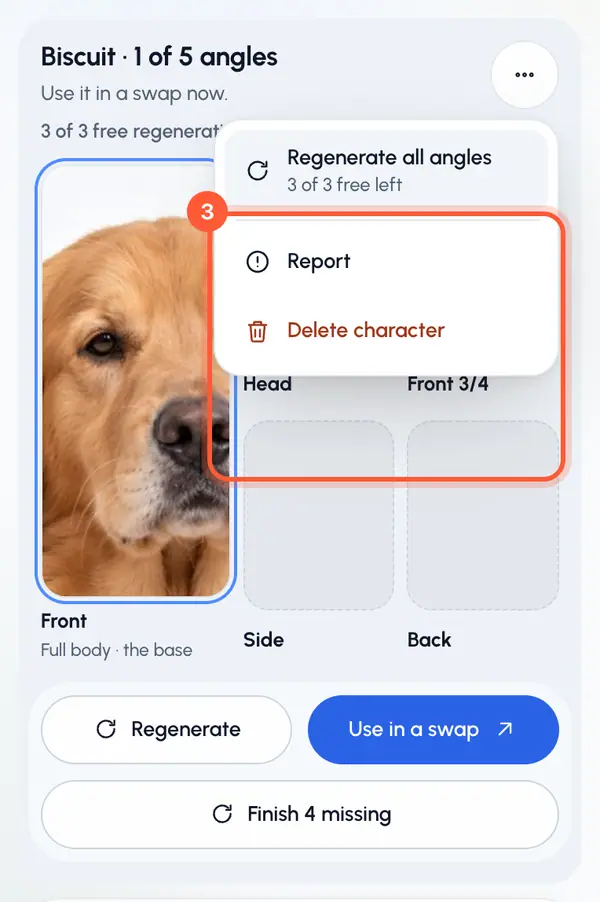
Tap the options button (three dots) at the top of the card.
Tap Regenerate all angles. You can also tap Regenerate at the bottom of the page.
Tap Regenerate to confirm.
ReShare AI draws a new set of all five angles from your reference photo, or from the description if there's no photo. The current set stays in use until the new one is ready. Then the new set takes over, and the old one is kept as the Previous set.
If the new set stops
The current set is still in use. Tap Try again to carry on, or Discard to drop the new set.
Switch back with Keep previous
Open the character.
Under Previous set, tap Keep previous.
The old look comes back, and the newer set becomes the previous one, so you can switch again any time. Only the last previous set is kept.
Redo one angle
Every finished angle except the Front has a redo button on its picture. Tap it to draw just that angle again.
How many you get
When plans are on for your account, each character comes with 3 free regenerations. The page shows how many are left. Once a character has a front picture, drawing it again uses one: regenerating all angles, redoing one angle, drawing the front again, or starting over. These don't use one:
- Keep previous and Discard.
- Try again on a new set that stopped.
- Trying again when the very first drawing failed.
When none are left, Regenerate all angles and Regenerate are turned off. Redoing an angle, drawing the front again or starting over opens the plan-limit window instead.
When you can't regenerate
- The character is still drawing. Wait until it's done.
- A video with this character is still being made. Try again once that video is ready. This also applies to Keep previous.