The When? step of posting has three choices. Post now is picked when you arrive.
Post now
Leave Post now picked and tap Review and post. The post goes out as soon as you confirm on the next step.
Pick a day and time
Tap Schedule.
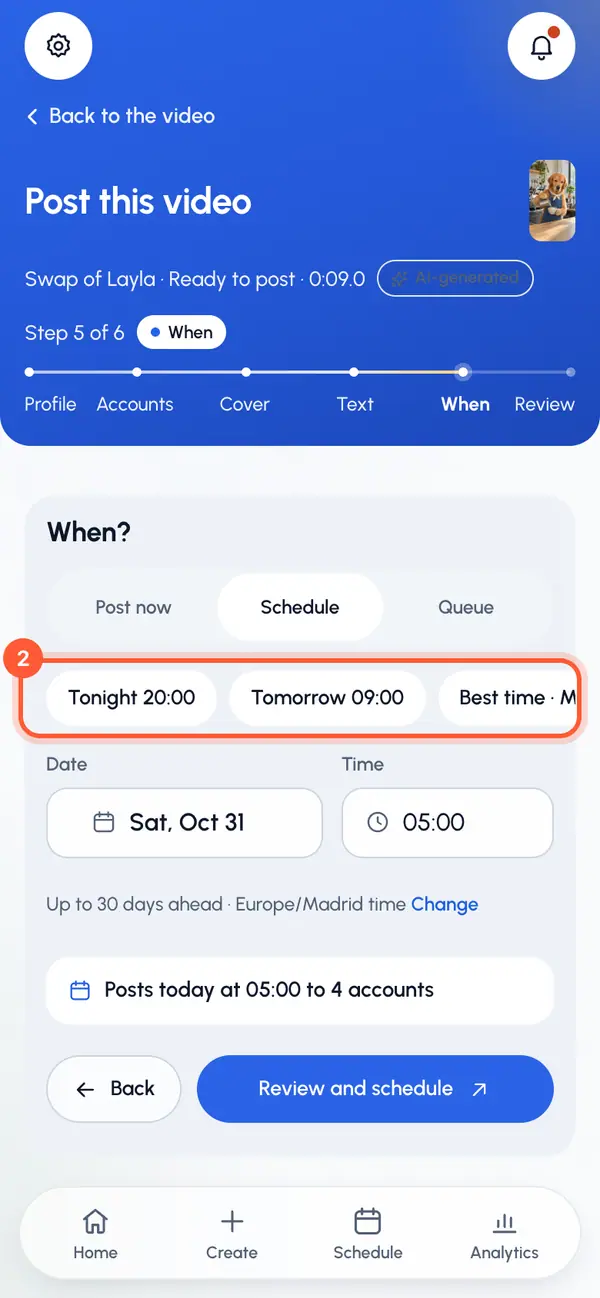
Tap one of the Quick picks, or set the Date and Time yourself. Times go in 15-minute steps.
To use another time zone, tap Change next to the zone and pick one under Time zone. Your device's zone is used otherwise.
Tap Review and schedule, check the post, then tap Schedule post.
You can schedule from 2 minutes to 30 days ahead. A line under the picker sums up when the post goes out and to how many accounts.
Quick picks
- Tonight at 20:00, while that's still ahead of you.
- Tomorrow at 09:00.
- Best time: the next day and hour in the 3-hour window where this profile's posts usually get the most views. It appears once the profile has at least 5 published posts with view counts in the last 90 days, and at least 2 of them fall in the same weekday and window.
Add it to the queue
Tap Queue. You'll see the next free slot in the profile's queue.
Tap Review and queue, then Add to queue.
The post takes the next free slot of the profile's posting times, up to 30 days ahead. If there's no free slot in that time, pick a time instead. To change the slots, tap Edit slots to open Profiles, then Posting times on the profile card. This leaves the posting flow, so set your times before you start a post.
After you schedule
Scheduled posts show on the Schedule tab and on the video's page. You can move one to another time, change its cover, post it now or cancel it.