Each profile has its own posting times. When you choose Queue while posting, the post takes the next free time from this list.
The default times
Until you save your own, a profile has times Monday to Friday at 09:00 and 18:00. Save the times once to set the time zone they use.
Change the times
Open Profiles. On a phone, tap Settings and account (the gear) and choose it there.
On the profile card, open Posting times.
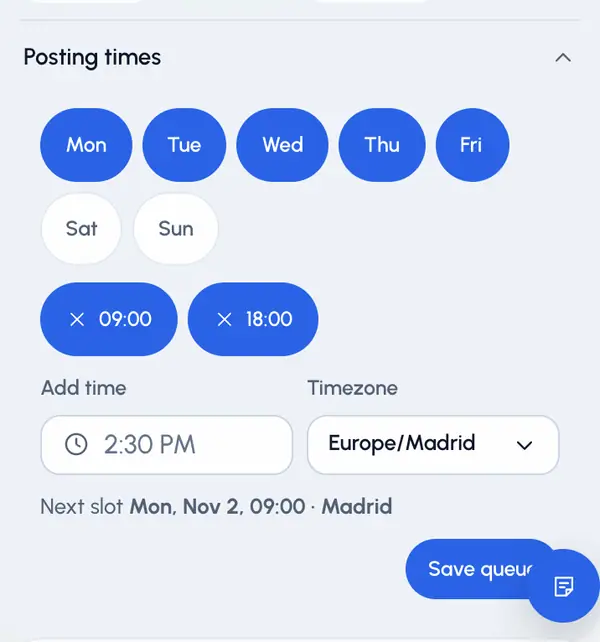
Tap the weekday chips to turn them on or off.
To remove a time, tap it.
To add one, tap Add time and pick a time. Times go in 30-minute steps.
Pick the Timezone the times are in.
Tap Save queue.
You need at least one day and one time to save. You can have up to 24 times. Under the editor you'll see when the next slot is.
You can also get here from the When? step of posting: tap Edit slots to open Profiles. This leaves the posting flow, so set your times before you start a post.
How the queue fills
- By default, each time takes one post. When a time is already taken, the next post goes to the next free one.
- A queued post goes out at least 5 minutes from when you add it, and at most 30 days ahead. If no time is free in that window, pick a time yourself.
- A queued post shows as Queued on the video's page, and as Scheduled on the Schedule. You can move it, post it now or cancel it like any scheduled post. Moving it to another time makes it a regular scheduled post.