Open the calendar
Tap Schedule. On a phone it's a tab in the bottom bar. On a computer it's in the side dock.
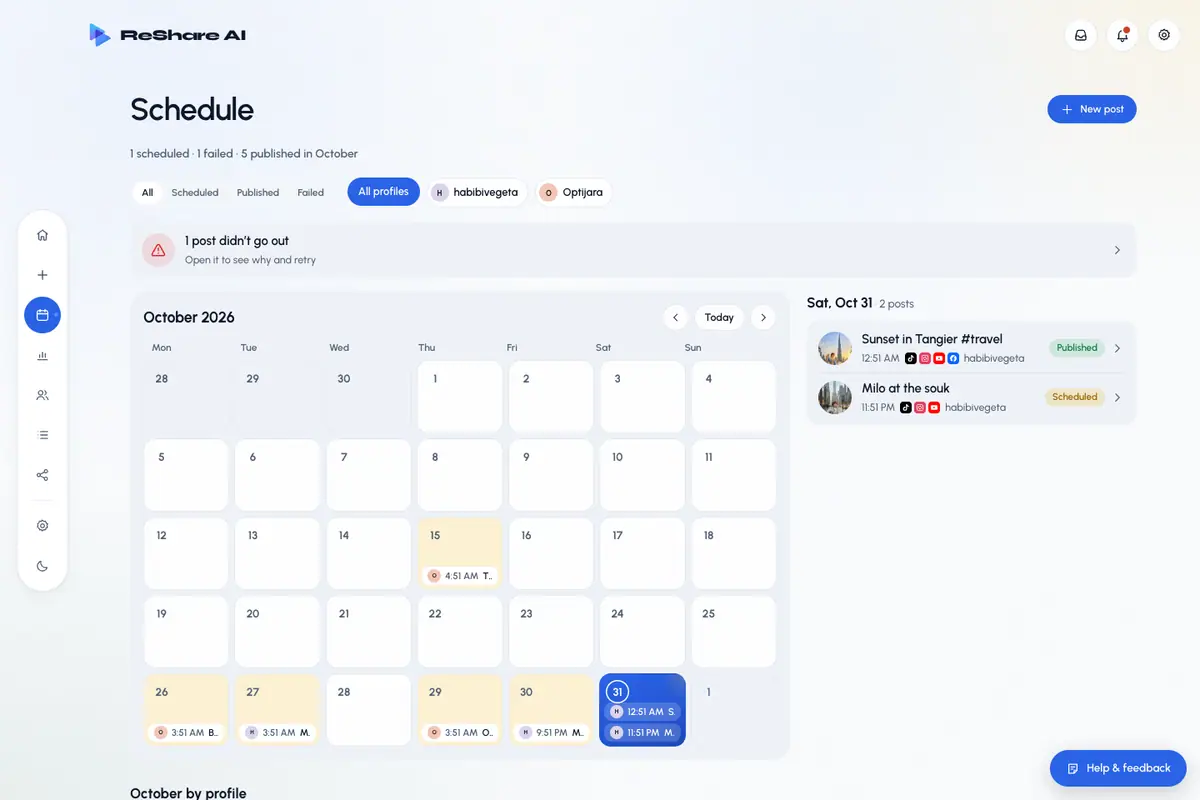
The header sums up how many posts are scheduled and published this month, and how many failed if any did.
Read the month
- On a computer: each day shows up to three posts as chips, with the rest behind a count.
- On a phone: days show colored dots. The legend under the calendar explains them: Published, Scheduled and Failed.
Move between months with the controls at the top of the calendar. A post sits on the day it was published. If it hasn't gone out yet, it sits on the day it's scheduled for.
See a day's posts
Tap a day. Its posts are listed with the cover, caption, time, networks and profile.
Each row has a status, such as Scheduled, Published or Failed. A failed row says Tap to retry.
Tap a post to open its details.
The post details
The details open beside the calendar on a computer, and from the bottom of the screen on a phone. You'll find:
- The profile, the date and time, and the status.
- The caption.
- Open video to go to the video, and Post again to post it again.
- Each network with its handle and result. Tap a result to open the live post. A failed network says why in plain words, with the network's own message under it.
- Buttons for what you can do next, like rescheduling a scheduled post or retrying a failed one.

The page address includes the open post, so you can bookmark it and come back to it.
Make a new post
Tap New post to pick one of your videos. Posts always start from a ready video.