Rank your posts
Open Analytics.
Tap Posts.
Choose a range, and a profile or network if you want. On a phone, these are in the range button next to the title.
Choose how to sort: Views, Engagement or Recent.
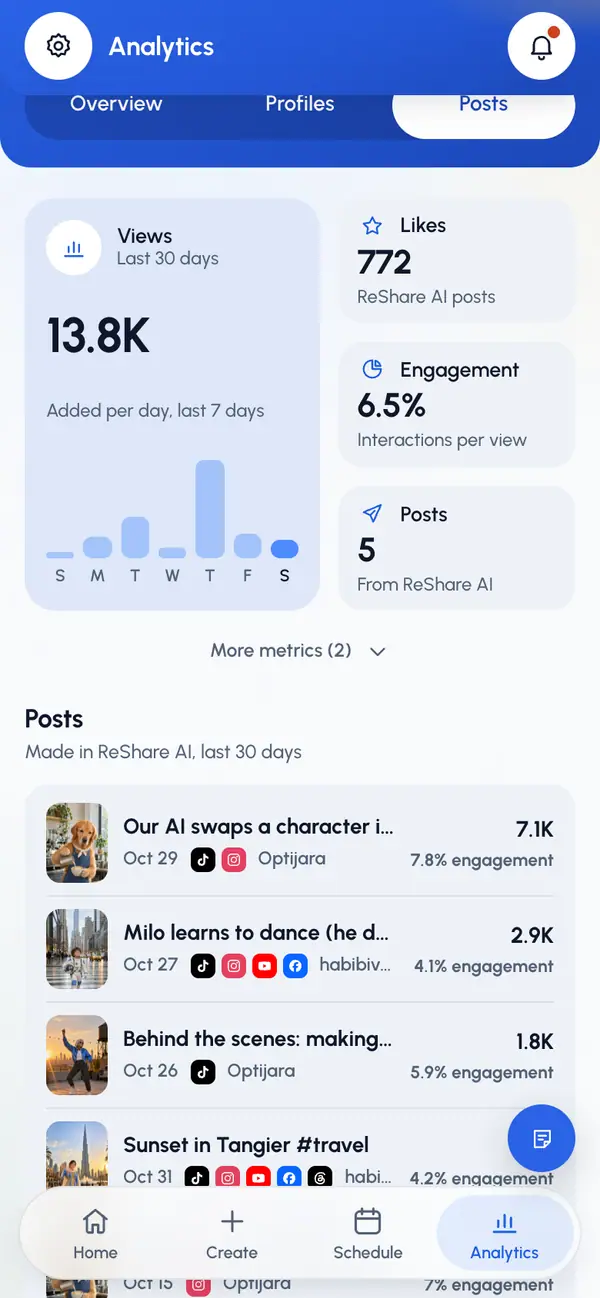
On a computer, each row shows views, likes, comments, engagement and Growth: the views a post gained over about the last 24 hours. On a phone, a row shows views with the engagement under them. A new post shows Fetching stats until its first numbers arrive.
Open one post
Tap a post in the list. You can also tap one under Top posts on the Overview.
Read Post performance: the video, its caption and a link to open it on each network.
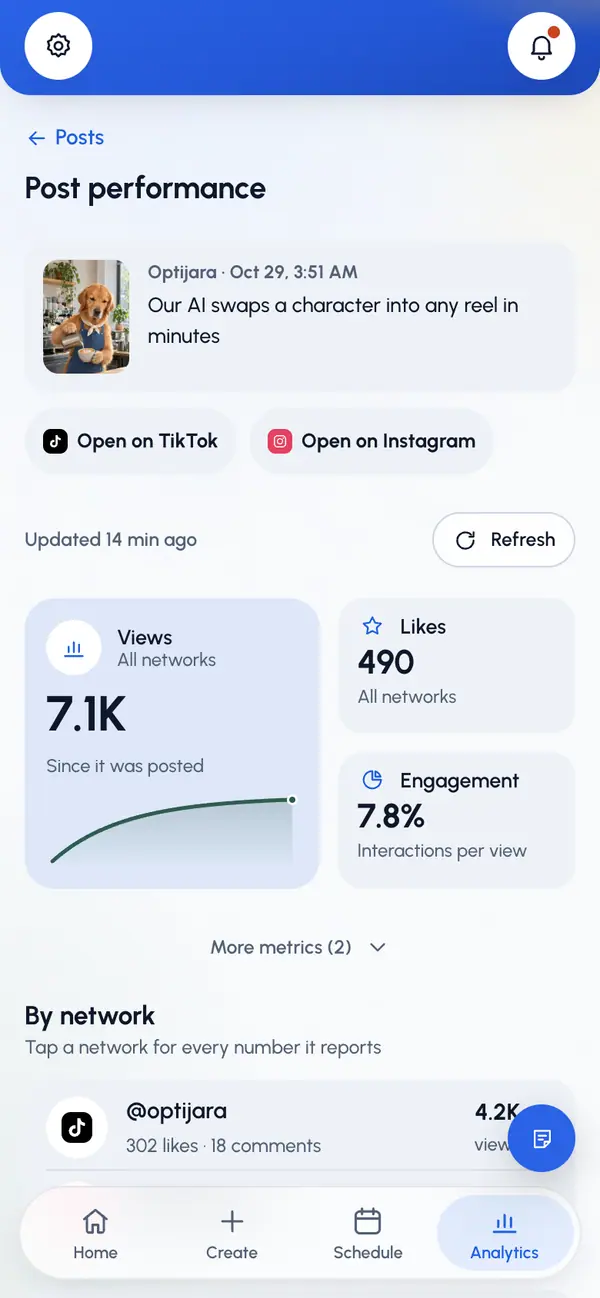
The page shows:
- Key numbers for all networks together, since the post went live.
- By network: on a phone, tap a network to see every number it reports. On a computer, each network has its own card.
- Extra numbers, only when the network reports them, such as Saves, Reach, Plays, Avg watch, Completion and Skipped in 3 s.
- Views over time, taken every hour in the first week.
- Facebook retention, when Facebook sends it.
- The First comment, if the post had one.
Refresh the numbers
Tap Refresh next to the time of the last update. You can refresh each post once every 5 minutes. Until then, the button shows how long to wait.
If a number is missing
- A dash means the network didn't report it.
- If a network asks you to reconnect, tap Reconnect and connect the account again in Profiles.
- A post still waiting as a draft in your TikTok inbox has no numbers until you publish it in the TikTok app.
- If a network is limiting requests, the numbers update later on their own.
- A post that isn't published yet has no analytics.