Create a key
Tap the gear at the top of the screen, then tap Settings. On a computer, Settings is also in the menu on the left.
Under Agents, tap Connect your agent.
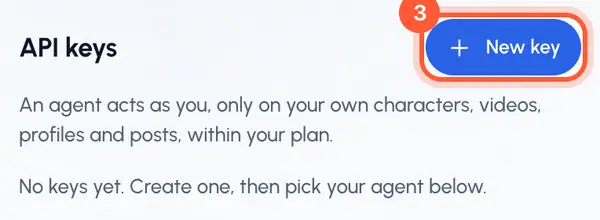
Under API keys, tap New key.
Give the key a Name, such as the agent and the computer it's for.
Under What the agent may do, keep the permissions the agent needs. All three are on to start.
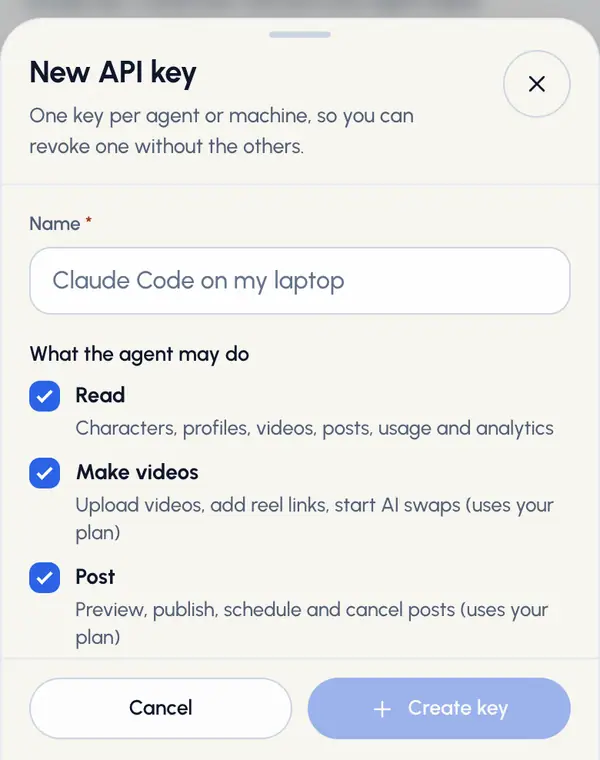
Tap Create key.
In the Copy your API key now window, copy the key. This is the only time it's shown: ReShare AI keeps a fingerprint, not the key itself.
Tap Done.
Make one key per agent or computer. Then you can revoke one without stopping the others.
Add it to your agent
On the same page, under Install, pick your agent.
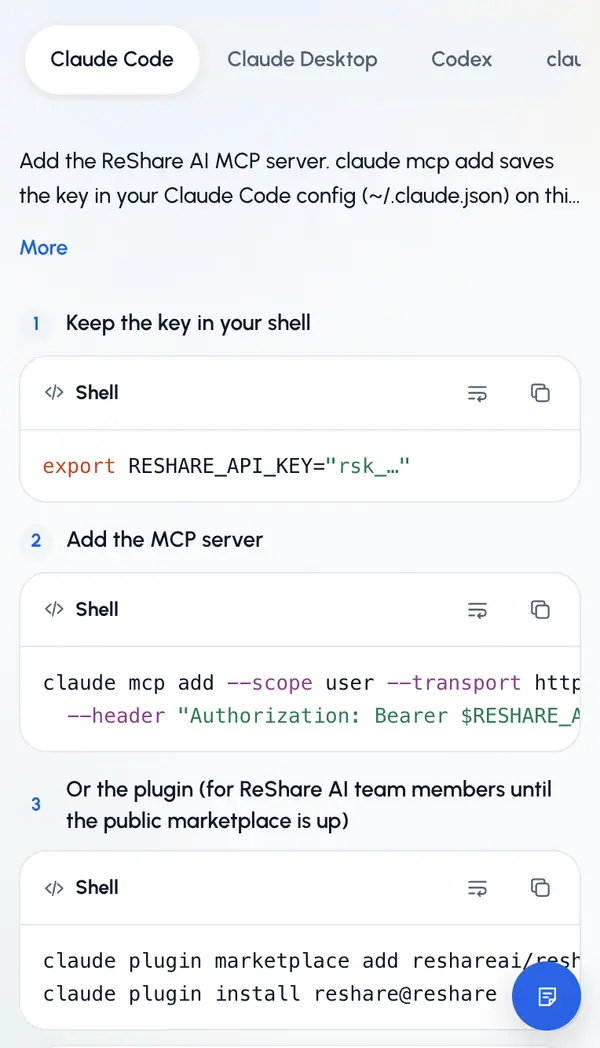
Follow the steps shown for it. Each step has the exact command or text to copy.
Ask your agent something, such as "List my characters."
What the steps do for each agent:
- Claude Code: you keep the key in your terminal as
RESHARE_API_KEY, then add the ReShare AI server with one command. That command saves the key in your Claude Code settings on this computer. - Claude Desktop: you paste a block into
claude_desktop_config.json(in Claude, Settings, Developer, Edit config), put your key in it, and restart Claude. This needs Node.js. The key is saved in that file. - Codex: you keep the key in your terminal as
RESHARE_API_KEY, then add the server with one command. Codex reads the key each time and doesn't save it.
claude.ai is marked Coming soon.
Revoke a key
Open Connect your agent again.
Find the key in the list and tap Revoke.
Tap Revoke key to confirm.
Agents using that key stop working at their next request. This can't be undone. The key stays in the list marked Revoked.
Good to know
- You can't change a key's name or permissions later. Make a new key and revoke the old one.
- Lost a key? It can't be shown again. Create a new one and revoke the old one.
- Each key shows when it was last used, so you can spot keys you no longer need.
- The agent guide has the same setup steps, a list of every tool and answers to common questions. It's also open when you're signed out. On the Connect your agent page, tap How it works to get there.