Before you start
You need a ready video and a profile with at least one connected account. If you haven't connected one yet, see Connect your social accounts.
Post your video
Open the video and tap Post or schedule. If it has been posted before, the button says Post again.
On the Post as step, pick the profile to post as, then tap Continue. Only profiles with a connected account are listed. If you have just one, it's already picked.
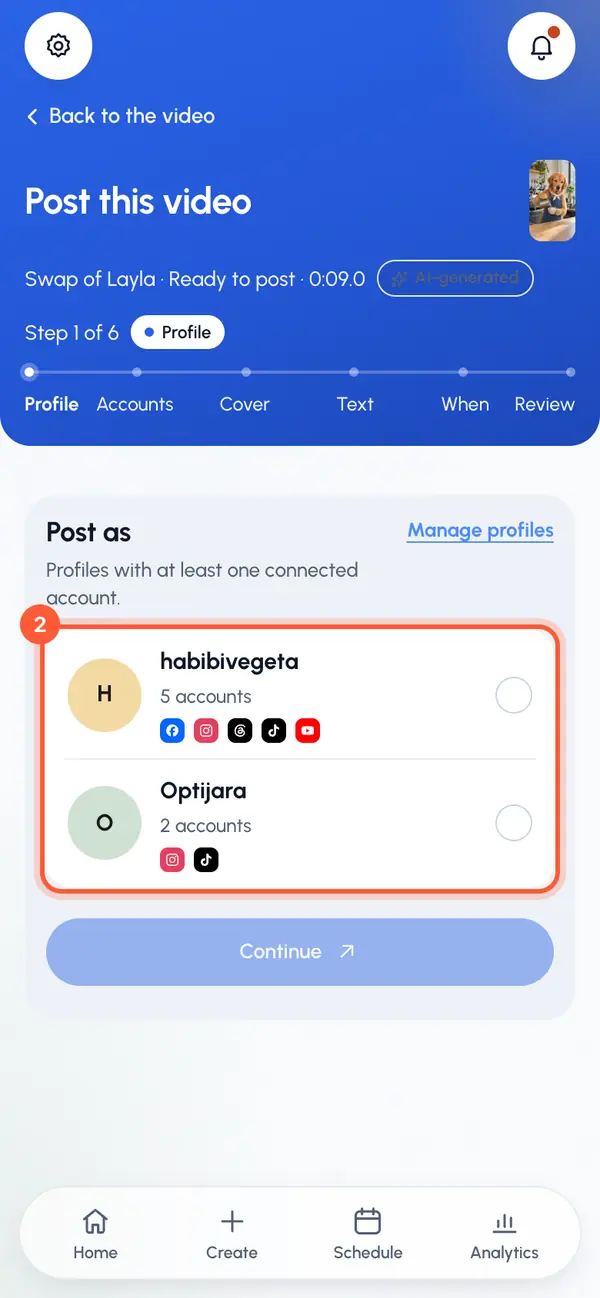
On the Where? step, every connected account of the profile is already selected. Tap an account to leave it out, then tap Continue.
On the Cover step, drag the filmstrip to choose the frame people see before they tap. It starts on the first frame. Some networks pick their own cover; the step tells you which. Tap Continue.
On the Text step, write the Caption. Add a title if YouTube or Reddit is selected, and an optional first comment. Below the text you'll find each network's settings. Tap Continue.
On the When? step, choose Post now, Schedule or Queue, then tap the review button.
On the Check and send step, read what goes out on each network. Tap Post now, Schedule post or Add to queue to send it.
You can tap Back at any step, or tap a step you've already done at the top.
After you send it
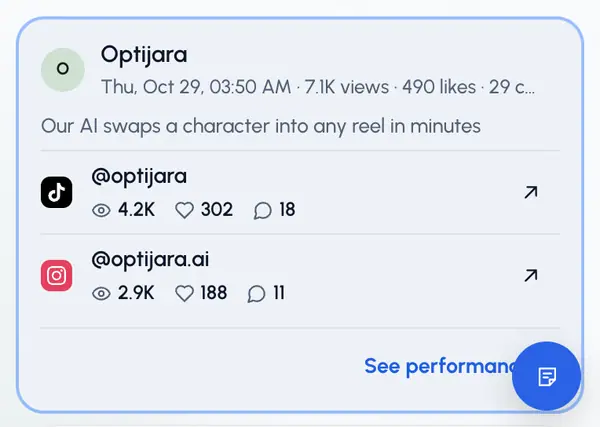
You land back on the video's page, with your new post highlighted in its list of posts. Each account gets its own row with its status, and numbers like views once the network reports them. The page keeps checking while the post is going out.
If something didn't go out, tap Retry failed. If an account needs to be reconnected, the post's row says so.
Sending the same post twice by accident is safe: a double tap still makes one post.
Plan limits
When plans are on for your account, each account you post to uses one post from your allowance. Accounts that never went out are given back, and retries don't use another post. See plans.