All your posts live on the Schedule tab, month by month. The posts page opens the Schedule as well. Other users can't see your posts.
Filter the list
Open Schedule.
Pick a Status: All, Scheduled, Published or Failed. On a phone, these are chips at the top. On a computer, they're above the calendar.
If you have two or more profiles, tap a profile to see only its posts, or All profiles to see them all.
Posts that need you
When a post this month didn't go out, a Needs attention row shows above the calendar.
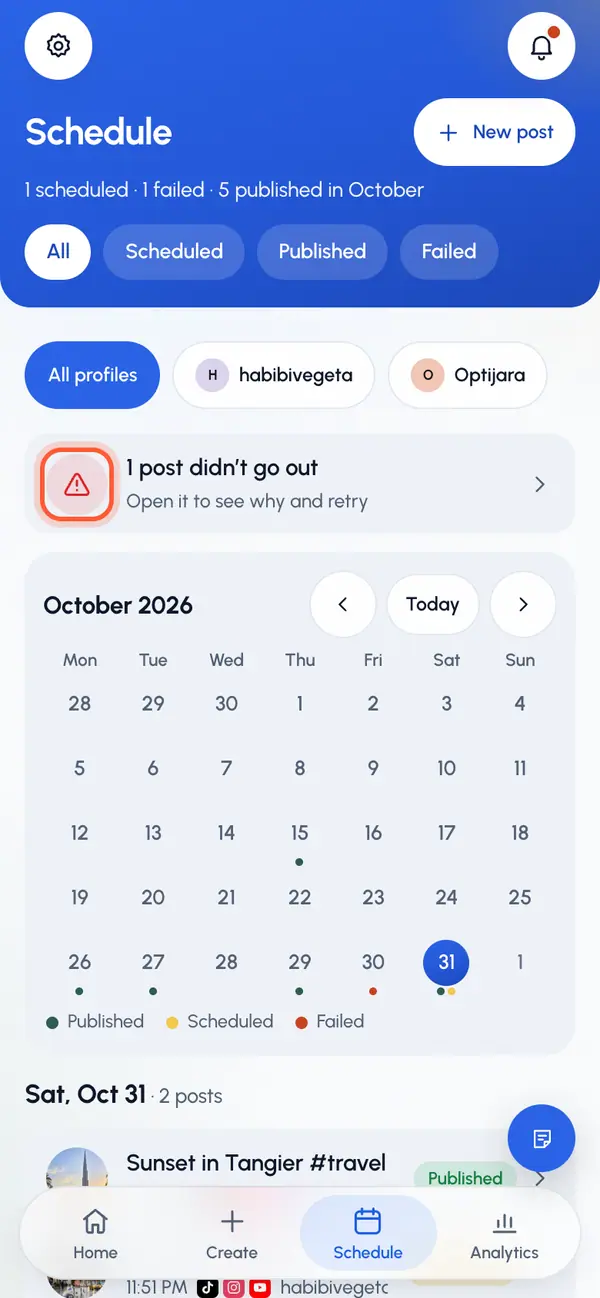
- With one such post, tapping the row opens it.
- With several, tapping the row shows only failed posts and jumps to the first one's day.
Open the post to see why and retry. See Change, cancel or retry a post.
A video's posts
Each video's page lists every post made from it. Open the video from the post's details with Open video.
- Each post shows its profile, time, status and caption.
- Each account has its own row with its status, and views, likes and comments once the network reports them.
- Tap See performance to see how the post is doing.
What the statuses mean
- Scheduled or Queued: waiting to go out.
- Posting: going out now.
- Published: live on every network.
- Partly posted: live on some networks, failed on others.
- Failed: didn't go out.
- Cancelled: it was cancelled and won't go out.
- Draft in TikTok: finish it in the TikTok app.
- Finish in app: finish it in that network's app.
The month's summary under the calendar shows each profile's numbers.