Stitching joins two or three videos into one, in the order you choose. You can use files you upload and videos you made before, swaps included.
Pick the videos
Open Create. On a phone, it's a tab in the bar at the bottom. On a computer, it's in the menu on the left.
Tap Stitch videos.
In Stitch videos, pick two or three of your videos. They're numbered in the order you pick them.
Tap the button at the bottom to add them.
If you're in the middle of a swap, tap Change next to the first step to see this option, or use Stitch clips on Home.
You can also start from Post your own video: add one video, then add a second, and a third if you like. Each can be an upload or one of your videos.
To change the order, drag a video by its grip, or use its menu to move it up or down. You can add the same video twice.
Cut and join them
After you add them, the Stitch step opens. If you added the videos one by one, tap Continue.
For each clip, drag its start and end on its timeline. Each clip keeps at least half a second.
Tap the pill between two clips to choose how they join: Cut for a hard cut, a crossfade of 0.5 or 1 second, or Custom to set it with the slider.
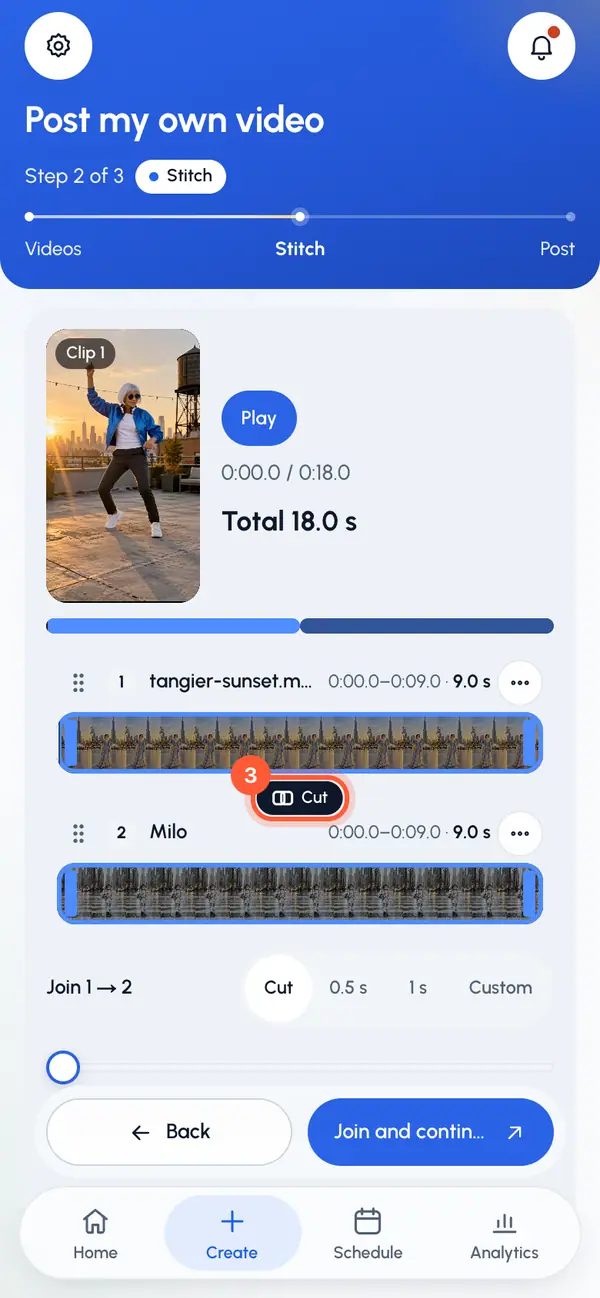
Tap Play to watch the whole sequence, joins included.
Tap Join and continue.
ReShare AI joins the videos, then opens the posting page so you can post or schedule the result.
Limits
- Two or three videos per stitch.
- A crossfade is at most 2 seconds, and at most half of the shorter of the two clips. If both clips are very short, they can't overlap.
- The joined video can be up to 10 minutes long. The total length shows as you edit.
- If your account has plans and they limit uploads, a stitched video uses one upload from your plan's allowance. See plans.
If joining fails
Tap Back to stitch, change the cuts, and try again.