On this page
Why it happens
Networks give ReShare AI access to your account for a while. When that access runs out or is taken back, ReShare AI can't post there until you sign in again. You'll notice it when:
- Your notifications (the bell at the top) ask you to reconnect a network on a profile.
- The network's tile in Profiles has a yellow dot, or says Reconnect.
- An account shows Needs reconnect.
- A post failed because the network needs to be reconnected.
Reconnect from Profiles
Open Profiles. On a phone, it's in the account menu (the gear at the top).
On the profile, tap the network's tile. A menu lists each account on it.
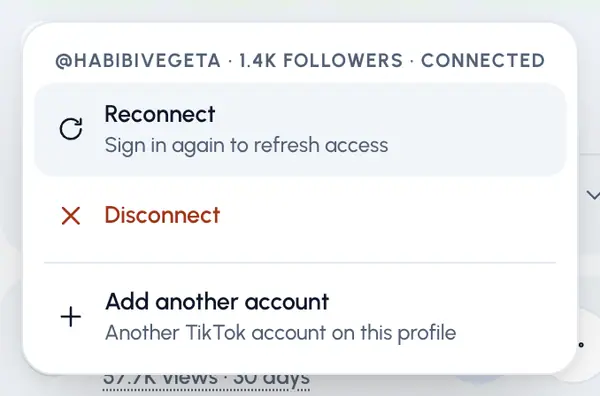
Under the account, tap Reconnect.
The network's sign-in page opens. Sign in with the same account and allow access.
You come back to Profiles, and a message says the network is connected.
On plans that limit accounts per profile, reconnecting doesn't take up another account slot.
Reconnect while posting
On the Accounts step of the posting flow, an account that needs it shows Reconnect. Tap it: the sign-in opens in a new tab. When you come back to the posting flow, the account list updates.
After you reconnect
To send a post that failed while the account was disconnected, open it in Schedule and retry it. See A post failed.
If it doesn't work
- You closed the sign-in window: start again from the tile.
- That link expired: the sign-in link lasts 30 minutes. Start again.
- Already on another profile: an account can be on only one profile. Disconnect it there first.