Find the failed post
- In Schedule, a Needs attention row shows posts that didn't go out this month. Tap it.
- In the day list, a failed post says Tap to retry.
- Your notifications (the bell at the top) also tell you when a post failed.
A post can also be partly posted: it went out on some networks and failed on others. Only the failed ones need a retry.
See why
Tap the post. A panel opens with each network it went to.
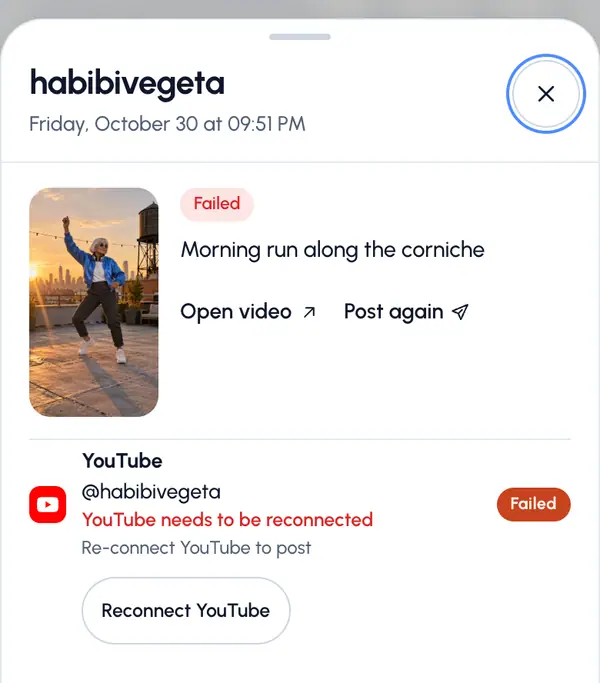
Each failed network shows the reason in plain words, with the network's own message under it.
The reasons you may see:
- The network needs to be reconnected, or the account is no longer on the profile.
- The network is busy right now, for example because of a rate limit or a daily quota.
- The network didn't accept the video file, or didn't accept the text.
- The network says this was already posted.
- The network didn't answer.
- The network didn't take this account, or didn't take the post.
Fix it
Next to each failed network, the panel offers what fits the reason:
- Retry: sends the post to that network again. When two or more networks can be retried, a button retries them together, for example Retry all failed.
- Reconnect: takes you to Profiles. Reconnect the account, then come back and retry.
- Try again later: the network asked you to wait. Come back later.
If the text was refused, fix it in a new post: tap Post again.
You can also retry from the video's page: under the post, tap Retry failed.
Good to know
- On plans that count posts, a retry doesn't use another post.
- If the post's scheduled time is still a few minutes away, the retry keeps it. Otherwise it goes out right away.