On this page
How you sign in depends on where you use ReShare AI.
On the website
The website's sign-in page offers Google.
Open the sign-in page.
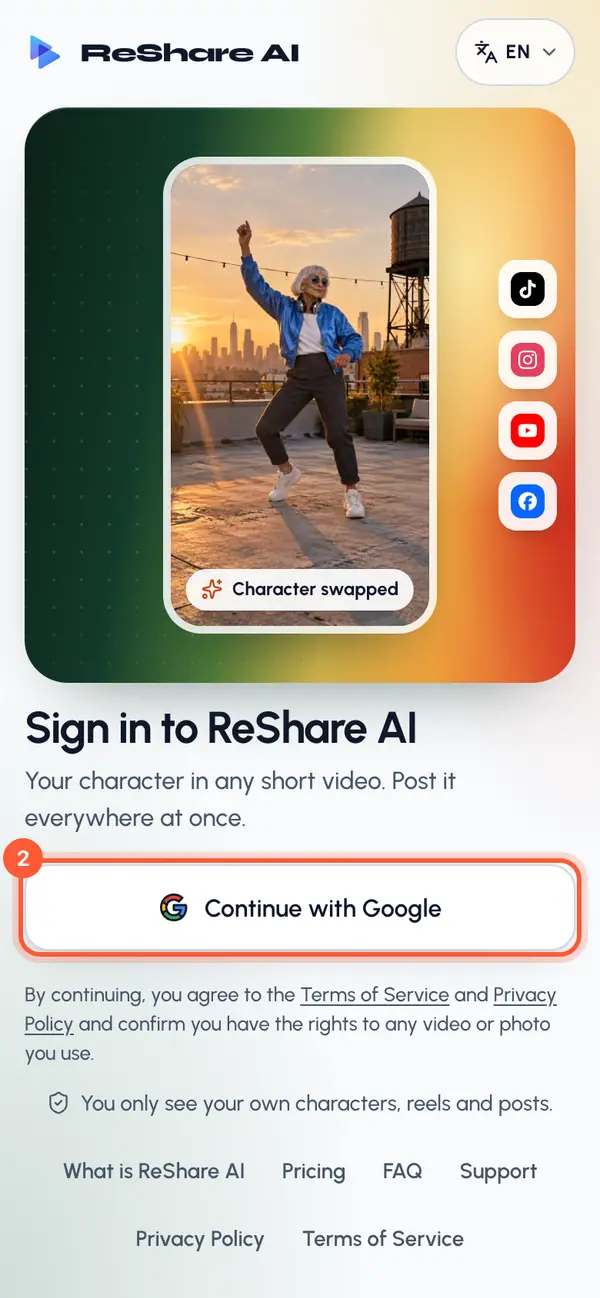
Click the Google button.
Choose your Google account. On a computer this opens in a small window. On a phone or tablet, the page moves to Google and comes back.
You land on Home, or on the page you were trying to open.
If your browser blocks the sign-in window, allow pop-ups for this site and try again.
In the iOS or Android app
The app shows its sign-in step after the first-run tour (see The mobile app).
- iPhone and iPad: Apple, Google or email.
- Android: Google or email.
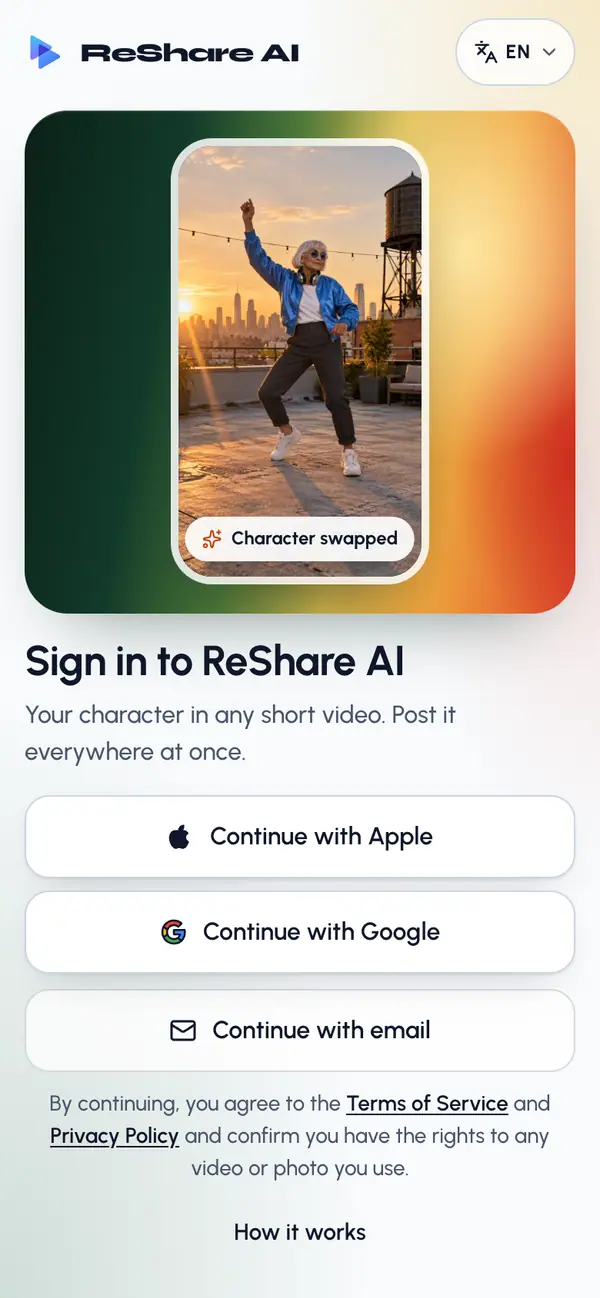
Create an account with email
Tap Continue with email.
Tap New here? Create an account.
Enter your Email and a Password of at least 8 characters.
Tap Create account.
Open the link in the email we send you.
Come back to the app and tap I've confirmed it.
If the email doesn't arrive, tap Send the link again. It can take a minute.
Sign in with email
Tap Continue with email.
Enter your email and password.
Tap Sign in.
Forgot it? Tap Forgot password? and we email you a link to reset it.
Agree to the Terms
Under the sign-in buttons, on the website and in the app, a line says that by continuing you agree to the Terms of Service and the Privacy Policy, and confirm you have the rights to any video or photo you use.
The first time you sign in, ReShare AI asks you to agree before you go on. It asks again whenever the Terms change.
Read the short points in Before you start (or Our Terms have changed). The links open the full Terms and Privacy Policy.
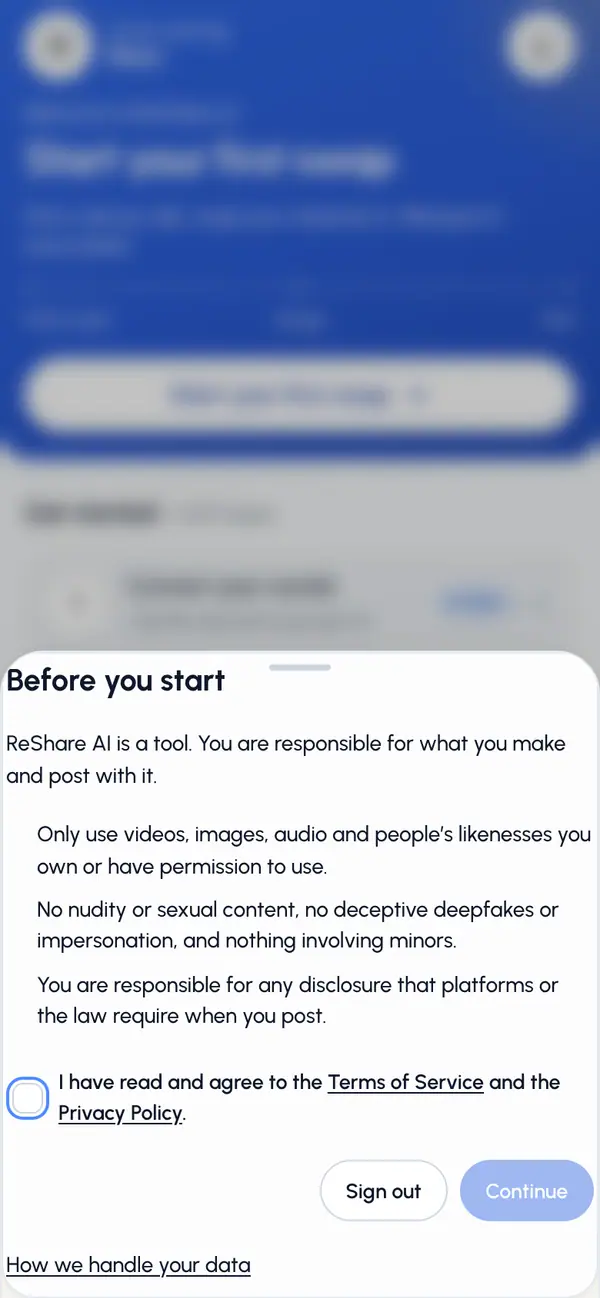
Tick the box.
Tap Continue.
If you don't want to agree, tap Sign out. You can still read the Terms, the Privacy Policy, Support and the account deletion page without agreeing.
If sign-in doesn't work
- "This email already has an account. Sign in the way you did before." Use the same option you used the first time.
- The option is not ready or turned off. Pick another sign-in option.
- "Signed out everywhere, sign in again". Someone used Sign out everywhere on this account. Sign in again.
Sign out
Open Settings and, under Account, tap Sign out to sign out on this device, or Sign out everywhere to sign out on every browser and phone. The account menu also has Sign out.