On this page
After the video loads, the Cut part opens with a player and a timeline. Watch the video, then choose the part your character is swapped into.
How long a clip can be
- A swap's length is a whole number of seconds, at least 3.
- The longest clip depends on the video service. If your account has plans, your plan also limits it: Starter and Creator allow up to 10 seconds, and Pro and Agency up to 15 seconds. See plans.
- When 30-second videos are available on your account, you can go longer. See 30-second videos.
When the whole video fits
Create uses the whole video and shows its length. To use only part of it, turn on Trim.
When the video is too long
Choose how to fit it: Trim or Speed up.
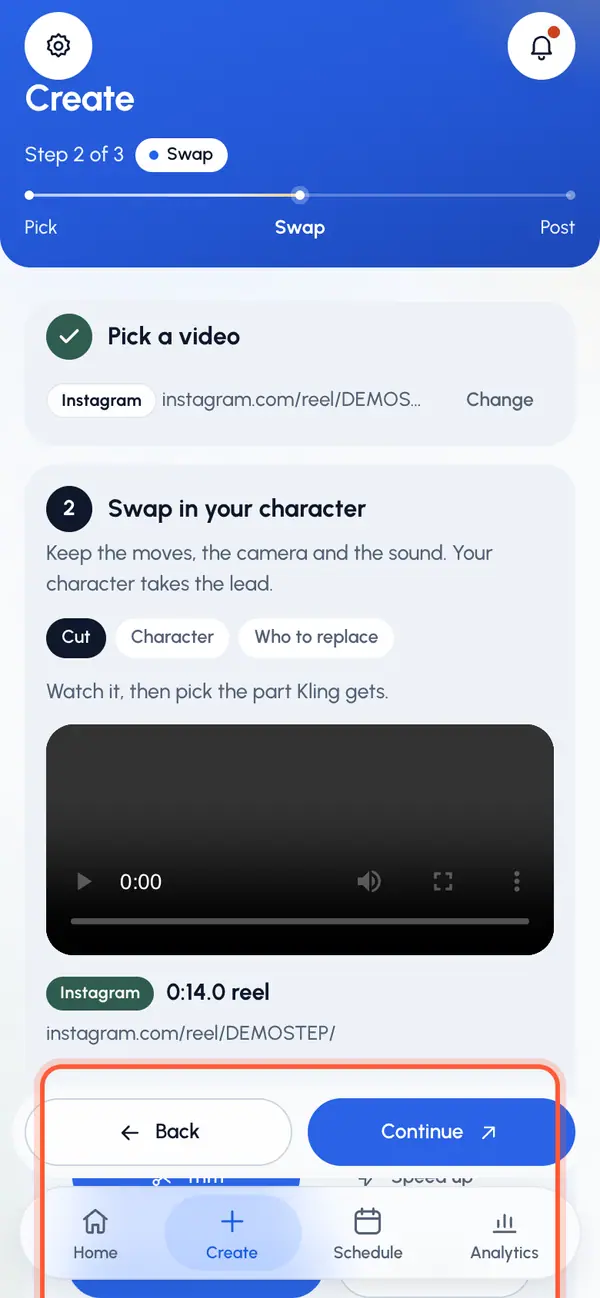
Trim it
Tap Trim.
Choose the clip length in seconds.
Drag the highlighted window on the timeline to the part you want. You can also use the Clip start slider, or the buttons that move it half a second.
Tap Play selection to watch your clip. It loops until you tap Pause.
Speed it up
Tap Speed up.
Create picks the smallest speed that fits, up to 1.25 times normal speed. Move the Speed slider to change it.
Play the preview. It plays at the chosen speed, with the sound's pitch kept.
Above 1.15 times, a warning says the motion can look rushed. Play the preview before you go on.
If the video is much longer than the longest clip, speeding up alone isn't enough. Trim first turns on so you first pick the part to speed up. You can also turn it on yourself to speed up only part of the video.
A sped-up clip is shorter once it's made. Create shows the part you picked and the final length, and the swap counts the final, shorter length.
Go on
Tap Continue once your clip is set. If your account has plans and yours doesn't include swaps, tapping Continue shows the plans. You can try the cut before you choose one.