On this page
These steps come right after you pick the part of the video.
Choose a character
In Character, tap the character you want. The first ready one is already picked.
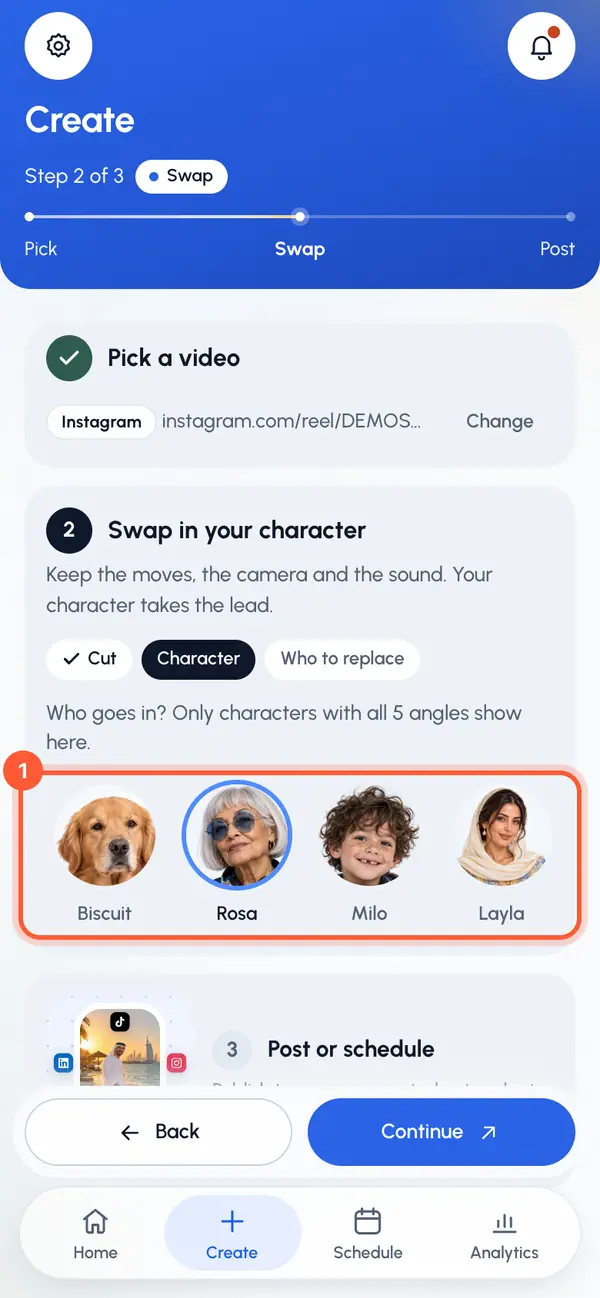
Tap Continue.
Only characters with all five angles drawn show here. To make a new one, tap New. If you have no ready character yet, tap Create character. Your video and cut are kept while you're away. See Create a character.
Say who to replace
Each swap puts one character in place of one person in the video.
In Who should be replaced?, describe the person to replace, for example "the woman in the red dress on the left". Leave it empty to replace the main person.
Or tap one of the Quick picks, such as the person on the left or the dancer.
If you like, add Extra direction (optional), for example "keep the sunglasses on, smile at the end".
Tap Continue.
The card below shows the prompt the video service gets, and it updates as you type. The person field takes up to 120 characters and can't contain @.
If you see Edit prompt, you can write the whole prompt yourself. Keep the mentions of the video and your character in it. Tap Reset to generated to go back to the generated prompt.
Review and start
Check the summary: Reel, Clip, Character and Replaces. If your plan counts swaps, Uses shows what this swap uses.
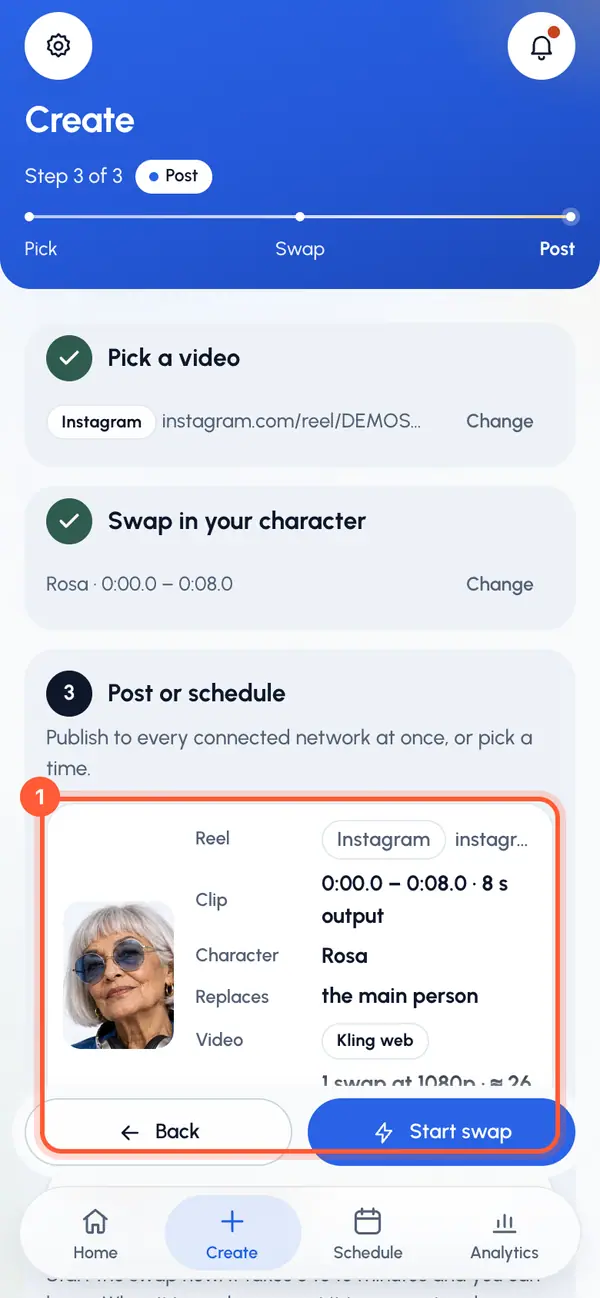
To fix something, tap Change. One takes you back to the link or file, the other back to the cut, where you can also pick a different character.
Tap Start swap.
The first time (or after you turned AI processing off), two notices may appear: one to confirm you may use the video, and How we make your content, which explains that Kling makes the swap from your character and the video. Tick the box and tap Continue on each. The swap then starts.
The video's page opens. A swap usually takes 5 to 10 minutes, and you can leave. See While your video is being made.
Video quality
You don't choose the quality. If your account is on a paid plan, Starter makes 720p videos, and Creator, Pro and Agency make 1080p videos. See plans. 30-second videos are always 1080p. Without plans, the quality is set by the service.
If the swap doesn't start
- Character needs a ready close-up first: wait until the character is ready, or pick another.
- AI swaps are unavailable right now, try again later: swaps aren't available right now. Try again later.
- If your account has plans and you've reached a limit, the plans open so you can change it.