Use this when the video isn't on Instagram, TikTok or YouTube, or when you already have the file on your phone or computer.
Supported files
- Formats: MP4, MOV or WebM.
- Size: swap uploads have a size limit set by the video service. If your file is too big, Create tells you the limit right away, before anything is uploaded.
- Length: you pick the short part to swap in the next step, so a longer file is fine. If a video is too short to swap, Create says so.
Upload a video
Open Create. On a phone, it's a tab in the bar at the bottom. On a computer, it's in the menu on the left.
Under the link field, tap Or upload a video.
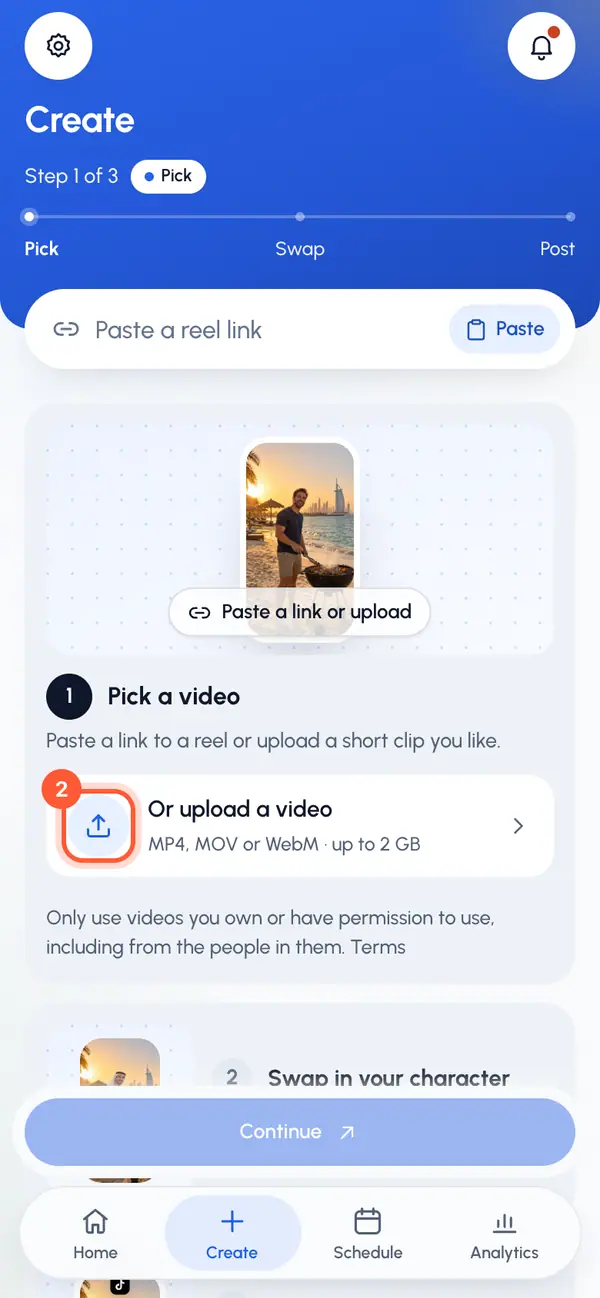
Choose the video file.
The first time you add a video, confirm you may use it: tick I own or have permission to use the videos I add, and to post what I make with them. and tap Continue.
Wait while it shows Uploading with the progress, then Checking the video….
When the player appears, pick the part to keep. See Pick the part of the video to use.
To stop an upload, tap Cancel.
Only use videos you own or have permission to use, including from the people in them. See What you can make and post.
If the upload fails
- Upload failed: check the connection and try again: your connection dropped. Check it and choose the file again.
- Upload failed, try again or The upload link expired, try again: choose the file again.
- Use an MP4, MOV or WebM video: the file isn't an MP4, MOV or WebM video. Convert it first.
- That file is empty: the file has no content. Export it again from the app you made it with.
- If the file is over the limit, trim it on your device first, or use a link to the video instead.
Only want to post your own video, without a character? Use Post your own video instead. It takes larger files and doesn't need a swap.