What you need
- A link to a short video on Instagram, TikTok or YouTube. It must be a full link that starts with
https://. - A ready character. If you don't have one yet, you can make it during the flow and come back.
Start from a link
Copy the link of the video in Instagram, TikTok or YouTube.
Open Create. On a phone, it's a tab in the bar at the bottom. On a computer, it's in the menu on the left (or press
N).Tap Paste in the link field at the top, or type the link yourself.
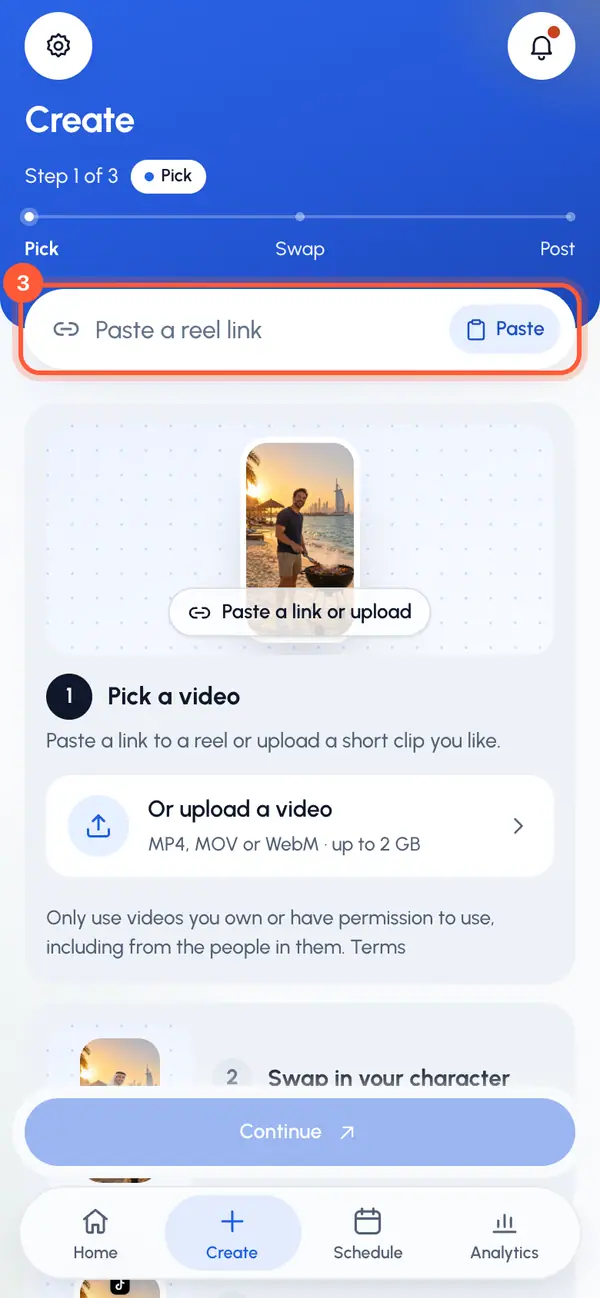
Tap Continue, or press Enter.
The first time you add a video, a step asks you to confirm you may use it: tick I own or have permission to use the videos I add, and to post what I make with them. and tap Continue.
Wait a moment while ReShare AI saves a copy you can watch and cut. To stop, tap Cancel.
Under the upload option, Create reminds you to use only videos you own or have permission to use, including from the people in them. See What you can make and post.
The flow at a glance
Create walks you through three steps: Pick, Swap and Post. Each step has one main button at the bottom.
- Cut: choose the part of the video to keep. See Pick the part of the video to use.
- Character and Who to replace: choose who appears and who they replace. See Choose a character and start the swap.
- Review: check the summary and tap Start swap. You then land on the video's page. See While your video is being made.
Steps you finished show what you chose, with a Change button to go back to them.
If the link doesn't work
- Paste a full https link or Only https links: copy the whole link again from the app's share menu.
- Start with an Instagram, TikTok, or YouTube link: other sites aren't supported. You can download the video and upload it instead.
- Couldn’t load that reel: the video couldn't be fetched. Tap Try again, or try another video.
Your choices are kept while you work. If you go back, reload the page or leave to make a character, the video, the cut and your text are still there in the same browser tab.