Where to find help
Tap the gear at the top of the screen, then tap Settings.
Scroll to Help.
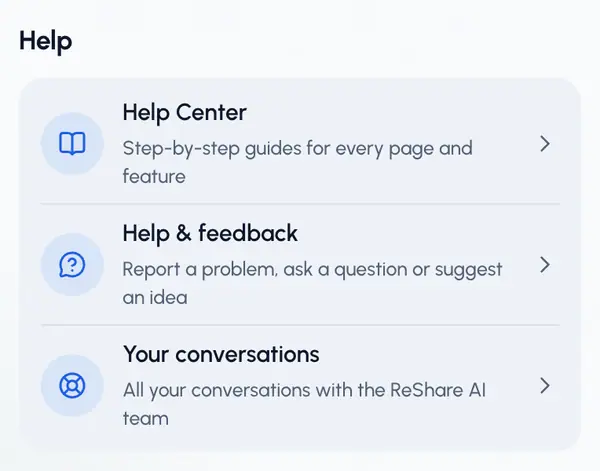
You'll see three rows:
- Help Center: step-by-step guides like this one.
- Help & feedback: report a problem, ask a question or suggest an idea.
- Your conversations: every conversation you've had with the ReShare AI team. A number shows how many have new replies.
Ask the team
The Help & feedback button sits in the bottom corner of most screens. On a phone, it's a round button just above the tab bar. On a phone, screens with a button bar at the bottom hide it. There, use the gear menu, which has a Help & feedback row too.
Tap Help & feedback.
Tap New request.
Under What is it about?, choose Something is broken, A question, Feedback or An idea for a feature.
Write a short Title and the Details.
If it helps, add a Screenshot or file: an image, a PDF or a text file.
Tap Send.
Your plan, language and app version are attached, so the team can help faster. Replies show up in the conversation and by email.
Follow a conversation
Open Your conversations in Settings, or tap Help & feedback.
Tap a conversation. Ones with an answer you haven't read say New reply.
Write your message and send it. You can attach files too.
Each conversation shows where it stands, such as In progress, Waiting for you or Resolved. If one is closed, tap Reopen to write again, or start a new request.
Can't sign in?
Open your conversations while signed out.
Tap Email us instead.
Fill in Your email, choose what it's about, and add a title and the details.
Tap Send.
The team replies to that email address. If nothing arrives, check your spam folder.