Open Settings
Tap the gear at the top of the screen. On a phone, the menu opens from the bottom.
Tap Settings.
On a computer, Settings is also in the menu on the left.
What's in Settings
The sections come in this order.
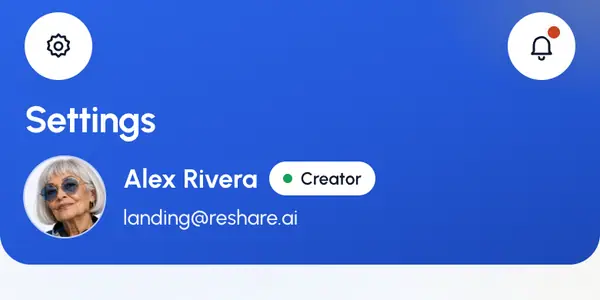
Account: your name and email, when you last signed in, and the buttons to sign out. On a phone, your name, email and plan also show at the top of the page. See Sign out.
Plan & billing: your plan and what's left this period, when plans are available on your account. Where they aren't, this spot shows This month, a summary of this month's usage with a link to Usage.
Appearance: the light or dark look. See Light and dark theme.
Language: the language ReShare AI uses. See Change the language.
Notifications: what the ReShare AI app on your phone tells you about. See Notifications.
Privacy & data: the AI processing switch, Download my data and Delete account. See Your data and privacy and Delete your account.
Agents: connect Claude or Codex with an API key. See Connect an agent.
Help: the Help Center, the Help & feedback window and Your conversations. See Get help.
Legal: the Privacy Policy and the Terms of Service.
Also in the gear menu
The gear menu has shortcuts to some of the same places:
- Usage: what you've used this period. See Your usage.
- The light, dark and system theme buttons.
- The language you use, which opens the list of languages.
- Help & feedback and Sign out.
On a phone, the gear menu also holds the pages that don't fit in the tab bar, such as Characters, Profiles and Activity.
Your characters, videos, profiles and posts are only visible to you.