On this page
How do I post one video to all my social networks at once? Connect your accounts to a profile, add your video in ReShare AI, write the caption, keep every account selected and tap Post now or Schedule: one post goes to all of them together.
You can post to TikTok, Instagram, YouTube, Facebook, LinkedIn and Threads today. X is coming soon. Posting your own videos needs no AI and works on every plan, including Free.
Step 1: Connect your accounts
A profile is a brand or client, and it holds the social accounts you post to. You connect each account once.
Open Profiles.
On the profile card, tap a grey tile that says Connect, and sign in to that network.
Do the same for each network you want. A connected tile turns green and shows the account's handle.
Have several brands or clients? Give each one its own profile. See Connect your social accounts.
Step 2: Add your video
Open Create and tap Post my own video.
Tap Upload a video to choose an MP4, MOV or WebM file, or From my videos to pick a video you made before.
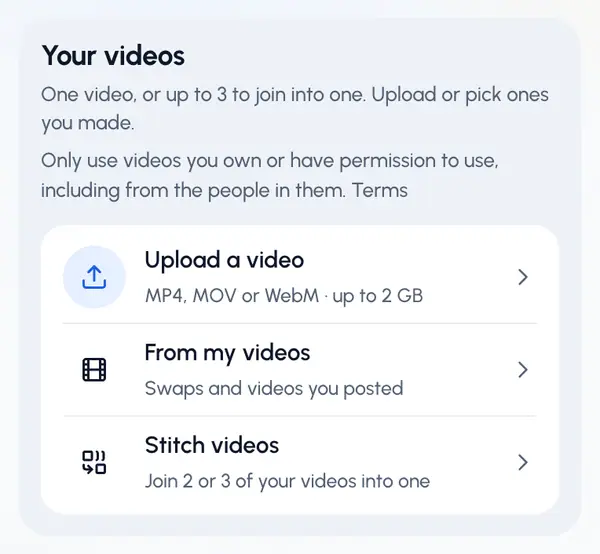
To keep only part of it, turn on Trim and drag the start and end handles.
To join two or three clips into one video, tap Stitch videos instead, then choose a hard cut or a crossfade between them. See Stitch videos together.
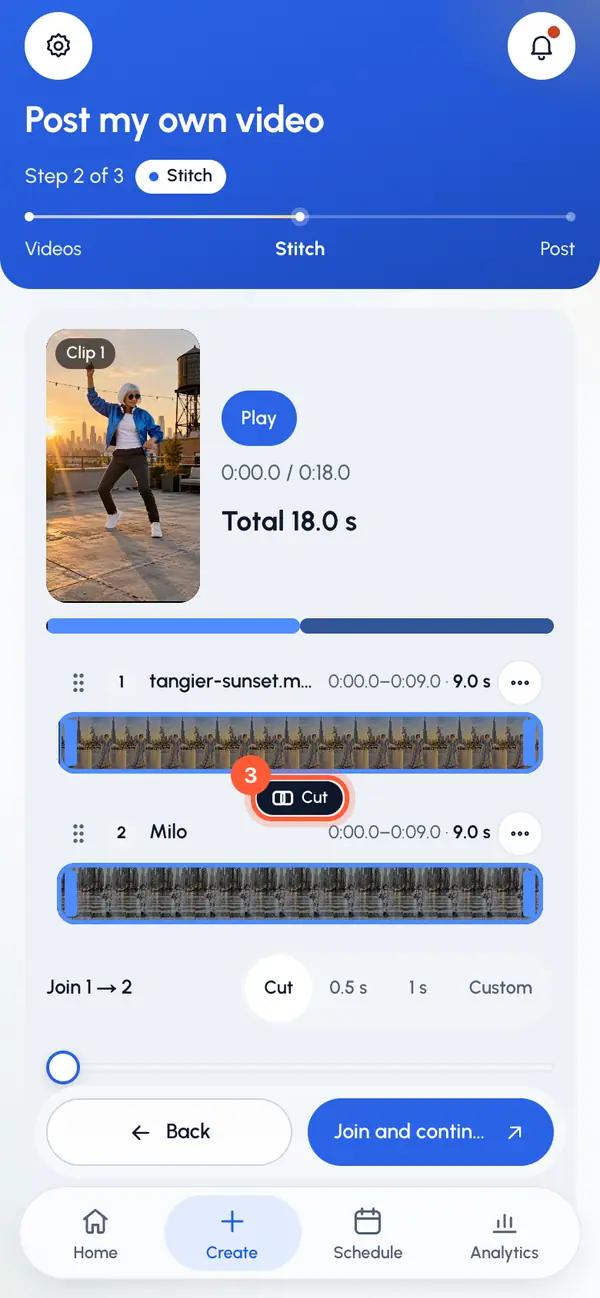
When the video is ready, the posting page opens by itself. See Post your own video.
Step 3: Pick your accounts
On the Post as step, pick the profile. On the Where? step, every connected account of that profile is already selected, so the post goes to all of them. Tap an account only to leave it out.
Step 4: Write the caption
On the Text step, write one Caption: it goes to every account you picked.
- When YouTube is selected, add a title.
- To give one network its own words, open Different text per network and type its text. An empty field uses your main caption.
- You can also add a first comment, and set each network's options below the text.
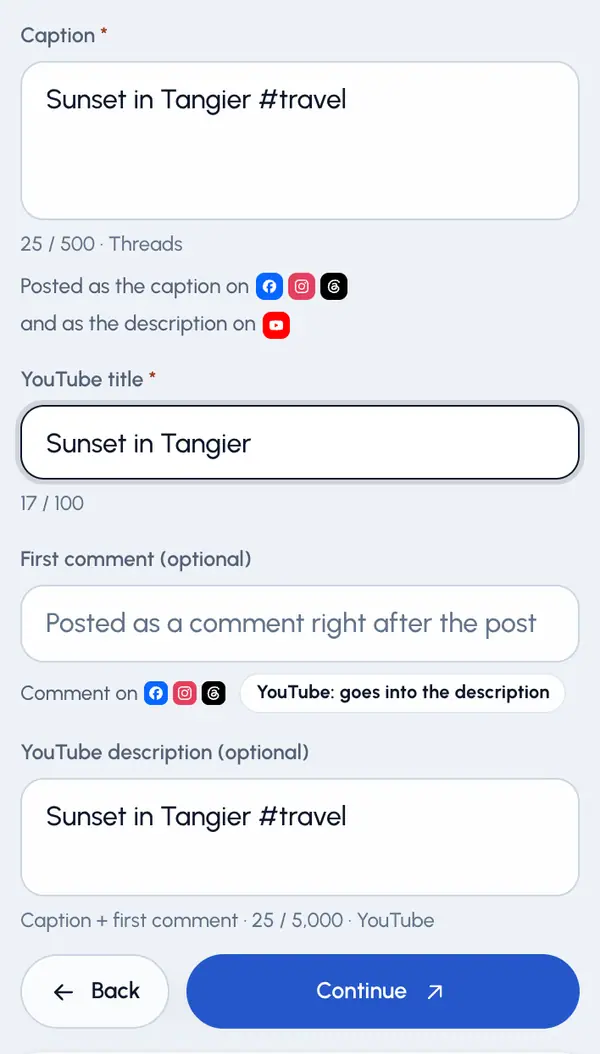
See Captions, titles and per-network text and Add a first comment.
Step 5: Post now or schedule
On the When? step, choose one:
- Post now: it goes out to every account as soon as you confirm.
- Schedule: pick a day and time, up to 30 days ahead.
- Queue: it takes the next free slot in the profile's posting times.
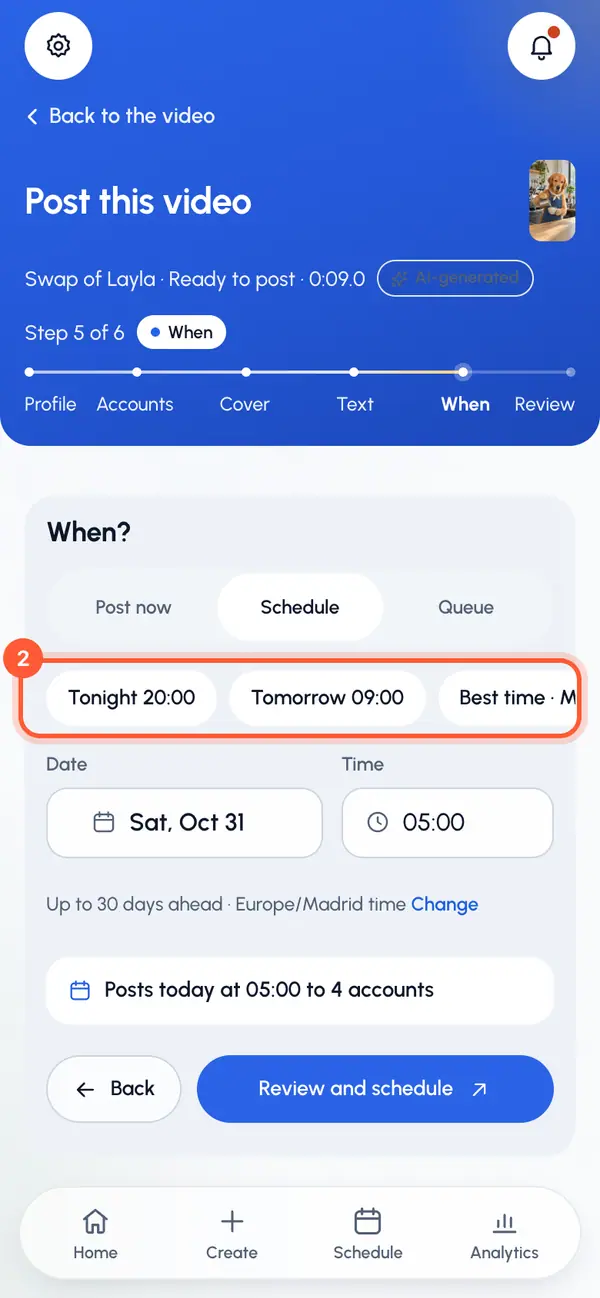
Check the review, then send it. See Schedule a post and Set a profile's posting times.
Step 6: Follow it on the calendar and in Analytics
Every post you made or scheduled, on every network, shows on the Schedule tab. Before a scheduled post goes out, you can move it, post it now or cancel it.
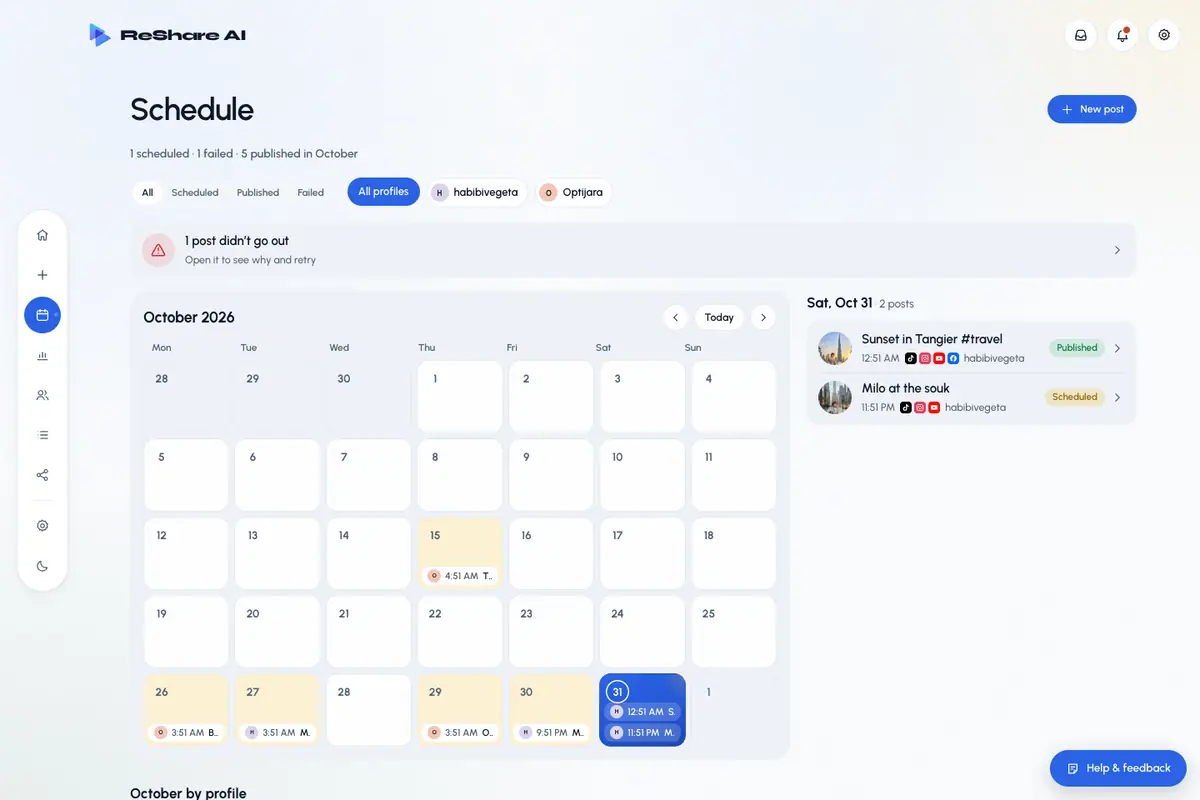
Once the networks report them, views and engagement for each post and each profile show in Analytics. See The schedule calendar and Analytics at a glance.
Good to know
- Each network has its own limits on length and text. ReShare AI shows notes about them before you post.
- When plans are on for your account, a post counts once for each account it goes to. See Post a video.
Only want to post the videos you already have? See what posting everywhere looks like, and the Sharing plans made for it.